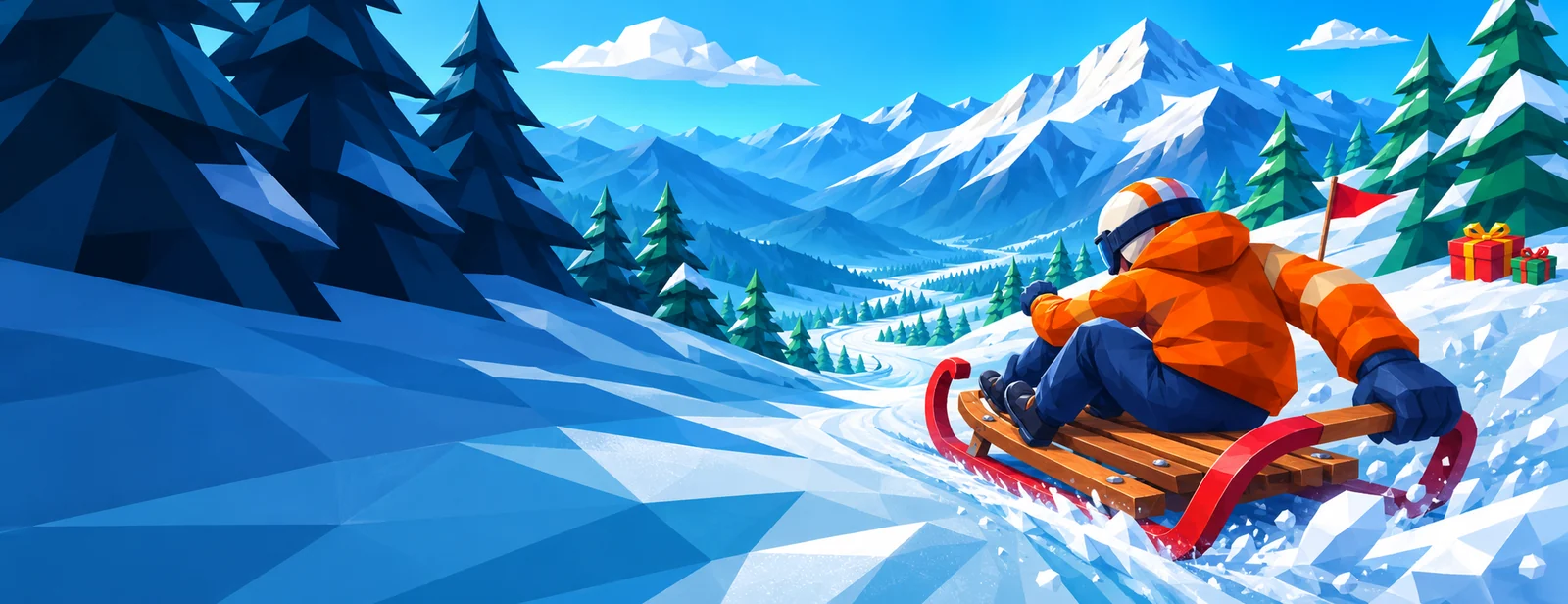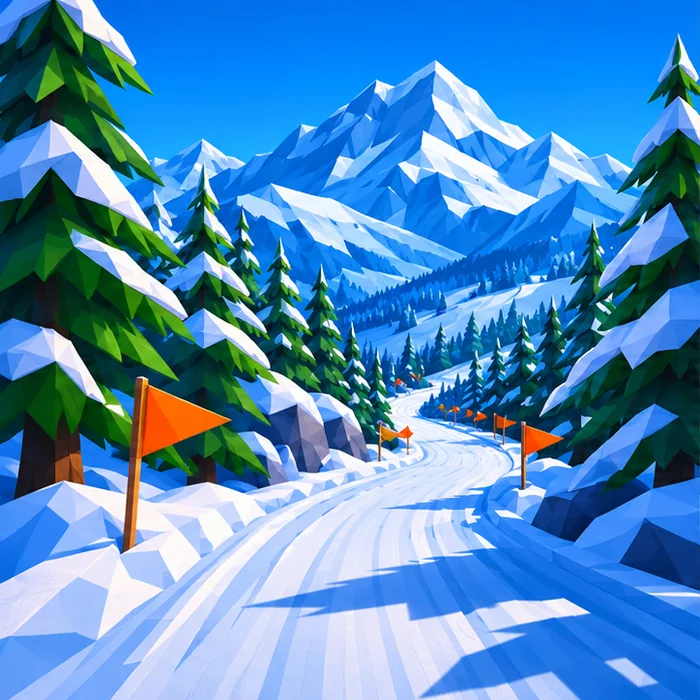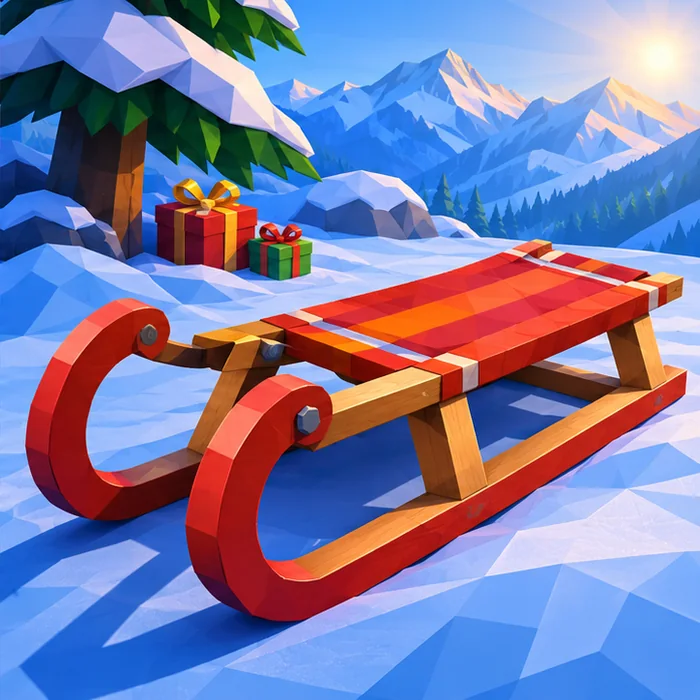
Start a browser session
Choose Play above to open Sled Rider. Give the player a moment to show its loading bar, then follow the start prompt inside the game. On a keyboard, keep your fingers over the left, right and up arrows. The sled begins moving as soon as the run starts. You can spend your first few seconds looking for a gap between the trees instead of hunting for an accelerator.
Looking for Sled Rider Unblocked on a school Chromebook or work laptop? You can play here during a permitted break if your device can reach the game host and run its 3D graphics. The game opens inside this page. You do not need to download a desktop installer, add a browser extension or sign up with this site. If you already see the snowy slope, you can skip straight to the controls.
The loading bar is moving
A picture of the game and a percentage mean your browser has reached the player's loading screen. The words “Downloading file” belong there. Although you play in a tab, the browser still has to fetch the code and artwork that draw the snow, trees and sled. You can leave your Downloads folder alone. The browser and the game handle these files for you.
In the game build labeled 25111403, the main data file alone is about 28 MB. The code that runs the game adds roughly another 11 MB. On a shared connection, the article and its pictures can appear well before that transfer finishes. Let the first attempt continue while the number climbs. Opening a second copy to see which loads faster makes both tabs compete for the same connection.
Even a full bar can stay on screen briefly. The player prepares its 3D scene and keeps the loading picture visible for a short interval after initialization. The signal to reach for the arrows is the game's start screen. If a specific error replaces the bar, keep its wording. A warning about graphics support calls for a different response from a message about a blocked site.
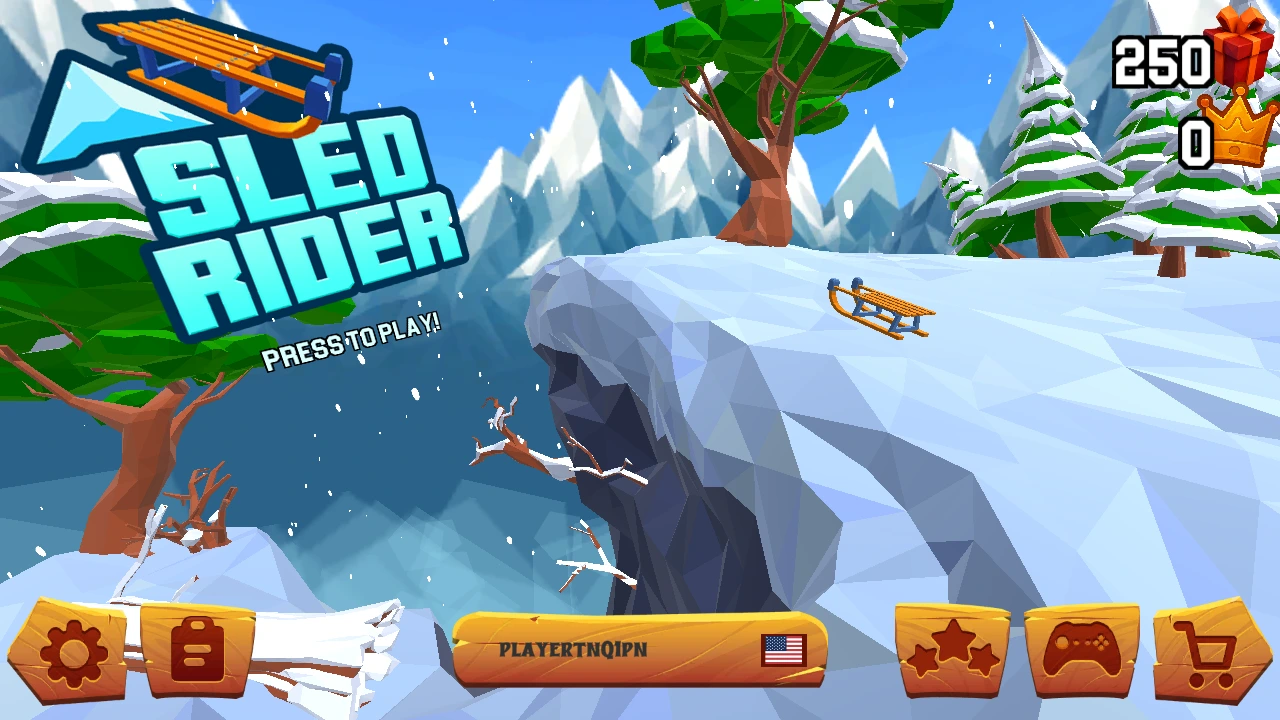
The page opens but the game stays blank
Check what occupies the middle of the player. If you can still see this site's Play button, choose it to request the game. If the cover disappears and a blank rectangle takes its place, the request has already started. Read any message inside that rectangle. A school filter sometimes shows its own notice there while the article below remains readable.
This happens because the article and game come from different places. Your browser opens this page on sledrider.app, loads the player from gamea.azgame.io and fetches the main game files from games.azgame.io. Being able to read the controls guide confirms only the first part. If your school allows games during breaks, give its support team the page address, the host named in the notice and the message you see.
On a personal device with a dropped connection, wait for the connection to return and reload the page once. Choose Play again. If the bar now advances past the point where it stopped, let it finish. When a managed network explicitly denies access, its administrator decides whether the game is available. You can return from home for a run on your own device.
The arrow keys scroll the article
Click inside the game, then use the start prompt. A browser sends key presses to the part of the tab you last used. Clicking this article, a navigation link or the address bar can move control away from the sled. If pressing the up arrow takes you back toward the page heading, that movement tells you exactly where the problem is. Click the game area again before trying the next run.
For a quick check, tap left on an open patch of snow and release. Follow with a small move to the right. Once you can place the sled where you want it, try the up arrow with clear snow ahead to see a jump. Testing each action separately makes it easier to spot a missed input. A tree at the end of a turn can make a working key feel surprisingly unresponsive.
The device shows a graphics error
If the player names WebGL 2, the game needs a graphics feature that the current browser session could not provide. The loader also checks for WebAssembly, which it uses to run the game code. Copy down the feature named in the message. On your own laptop, install any available update through the browser's normal update menu, restart it and try one fresh session.
On a Chromebook managed by a school, the same model can behave differently under different device settings. Share the exact error with whoever maintains it. A graphics warning after the loading picture appeared gives them more to go on than saying the website is down. If you have another device that you own and use for games, you can also try a run there.
Playing on a small screen
On a phone, open the page in your regular browser and turn the device to landscape before starting. Check whether you can see both sides of the game frame and read its prompts without zooming. Use the controls the game displays for your device. When the player is narrow, even a thumb resting over the picture can hide the base of a tree and make a clear path look much wider than it is.
Full screen can help when the browser offers it. Settle on a view before starting the descent, since changing orientation in the middle of a run costs you a look at the next obstacle. If you are using a Chromebook with a folding keyboard, laptop mode gives you the arrow keys. Try that setup if tablet mode leaves you with too little room to see and steer at the same time.
Keep a short run running smoothly
Watch two things on the first stretch of snow. Does the view move smoothly as the sled travels forward? Does a single arrow tap change your direction? If the whole picture moves in fits and starts, close a spare game tab or an unused video on your own device before retrying. If the scenery slides smoothly but the page jumps when you press a key, return your attention to keyboard focus.
Once the game responds, use its own replay option after a crash. Refreshing the browser between rides throws away the running session and takes you back through startup. A short break is long enough to pick one small goal. Try passing three obstacles cleanly, or collect a gift already on your route. You can start another ride without sitting through the initial loading picture each time.
Coming back to your sled collection
If you are saving up gift boxes for another sled, look at your balance when a ride ends. Note which browser and profile you used, especially on a computer that several people share. When you return, open the same page in that profile and check the in-game collection before setting off. A bookmark gets you back to the player. It cannot carry the contents of a game session over to a different phone or laptop.
A guest session can be a poor fit for collecting across several days. Shared devices may erase browser data when you sign out, and private windows generally discard local data when you close the last one. If you only have a guest session for lunch, choose a goal you can finish in one sitting, such as beating the distance from your first ride before the break ends.